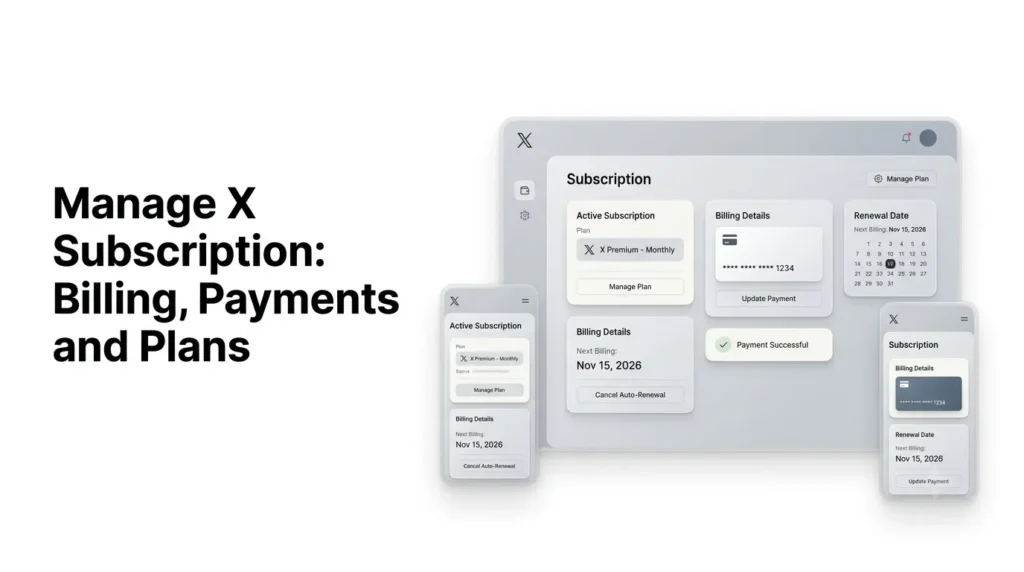
You can Manage X subscription by accessing the billing settings of the platform where you originally purchased it.
You can update payment methods, check your next renewal date, change subscription plans, review charges, or cancel auto-renewal.
However, the steps differ depending on whether you subscribed through the X website, Apple App Store, Google Play, or the X Subscription dashboard.
This guide explains how to manage each option and resolve common X subscription billing issues.
Key takeaways
- Manage your X subscription through the platform where you originally purchased it: X, Apple, Google Play, or The X Subscription dashboard.
- Update payment methods through the relevant billing provider, not necessarily through your X profile.
- Check your renewal date and billing cycle to avoid unexpected charges.
- Cancel auto-renewal before the next billing date if you no longer want the subscription.
- The X Subscription has a separate workspace-based billing system managed through Grok’s dashboard.
Table of Contents
Manage X Subscription: What You Need to Know Before Subscribing?
X subscriptions are not all managed in the same place.
The payment method you used when subscribing determines where you can change billing details, cancel renewal, or resolve a payment problem.
There is also an important distinction between legacy X Premium plans and The X Subscription, the newer combined subscription for X, Grok, and Cursor. Existing X Premium subscribers can keep their current plan, price, and features unless they choose to switch.
| Subscription or purchase route | Where to manage it |
|---|---|
| X Premium purchased on x.com | X Premium settings and its billing management flow |
| X Premium purchased through iPhone or iPad | Apple Subscriptions |
| X Premium purchased through Android | Google Play Subscriptions |
| The X Subscription | grok.com/dashboard |
| Creator Subscriptions | The platform used when you subscribed, such as X for iOS, Google Play, or x.com |
The key is to identify the original billing provider before changing anything.
Cancelling inside the X app may not work if Apple or Google handles the recurring payment.
How to Find Your X Subscription and Billing Details?
Before updating a payment method or cancelling a plan, check which subscription is active and where it is billed.
1. How to check your subscription on X?
- Open X and sign in to the account used for the purchase.
- Open the profile menu.
- Select Premium or the relevant subscription option.
- Review the plan information and any available subscription-management link.
- If the purchase is managed by Apple or Google, follow the link or check the relevant app store account.
The exact menu wording may vary by app version and platform. If you cannot find the billing details on X, check your purchase receipt or app store subscription list instead.
2. How to check your subscription through Apple or Google?
- On iPhone or iPad: Open Settings, tap your Apple Account name, then select Subscriptions. Find X in the list to view its plan and renewal details.
- On Android: Open Google Play, tap your profile icon, select Payments & subscriptions, then Subscriptions. Choose X to review its billing status.
If X does not appear in either list, that does not necessarily mean you have no paid plan. You may have purchased it directly on the web.
3. How to Check the X Subscription through the Grok website?
The newer X Subscription uses a workspace-based billing system. Its subscription, invoices, usage, and available top-ups are managed through the dashboard at grok.com/dashboard.
How to Update Your X Subscription Payment Method?
The steps depend on the billing provider. X does not provide one universal payment-method screen for every subscription.
1. How to change the payment method for X Premium purchased on the web
If you subscribed through x.com, open your X account and go to the Premium subscription settings.
Look for the billing-management option associated with your plan. X’s purchaser terms identify Stripe as the payment processor for web purchases, with subscription management accessible through X Premium settings.
If the payment details are managed through the linked billing flow, update the card or other available payment information there.
The exact options can depend on your account and region.
2. How to change the payment method for an Apple purchase?
For a subscription billed by Apple, update the payment method associated with your Apple Account:
- Open Settings on your iPhone or iPad.
- Tap your name.
- Select Payment & Shipping.
- Add or update a payment method.
Apple manages the transaction, so changing your Apple Account payment details is different from changing a card in your X profile.
3. How to change the payment method for a Google Play purchase?
For an Android subscription billed through Google Play:
- Open the Google Play Store.
- Tap your profile icon.
- Select Payments & subscriptions.
- Open Payment methods.
- Add or update the payment method you want to use.
The payment method used for Google Play purchases is managed by Google, not directly by X.
4. How to update payment details for the X Subscription?
If you have switched to the X Subscription, go to grok.com/dashboard and open the billing settings for the relevant workspace.
X’s current subscription documentation directs users to this dashboard to add or update payment methods.
Web payment options include cards, Apple Pay, Google Pay, and Link, although availability varies by country and checkout.
How to Check Your X Subscription Renewal Date and Billing Cycle
X subscriptions generally renew automatically unless you cancel them using the correct billing platform.
For legacy X Premium, X says subscriptions are billed monthly or annually, depending on the plan selected.
The renewal date is usually based on the original purchase date, although mobile processing dates can vary.
To check your next billing date:
- Web purchase: Review the subscription or billing details in your X Premium settings.
- Apple purchase: Open Settings, select your Apple Account, and go to Subscriptions.
- Google Play purchase: Open Payments & subscriptions, then Subscriptions.
- The X Subscription: Check the workspace billing details at grok.com/dashboard.
Check the renewal date before changing plans or cancelling. If you want to avoid another charge, do not wait until the renewal day, X advises cancelling at least 24 hours before the renewal period.
How to Cancel or Turn Off Auto-Renewal?
Cancelling a subscription usually stops future renewals; it does not automatically refund a payment that has already been processed. The cancellation route depends on where you originally subscribed.
1. How to Cancel X Premium purchased on the web?
- Sign in to the X account that has the paid subscription.
- Open Premium from the navigation menu.
- Go to the subscription management or billing section.
- Select the option to manage or cancel the plan.
- Confirm the cancellation and check for a confirmation message or email.
For web purchases, X’s terms identify Stripe as the payment processor and state that subscription management is available through X Premium settings.
2. How to Cancel X Premium on an iPhone or iPad?
- Open Settings on your Apple device.
- Tap your Apple Account name.
- Select Subscriptions.
- Choose X.
- Tap Cancel Subscription and confirm.
If you cannot find X in the list, check whether you subscribed using another Apple Account or purchased directly through the X website.
3. How to Cancel X Premium on Android?
- Open the Google Play Store.
- Tap your profile icon.
- Select Payments & subscriptions.
- Tap Subscriptions.
- Choose X.
- Select Cancel subscription and follow the instructions.
Uninstalling the X app does not cancel an app-store subscription. You must cancel it through the platform that bills you.
4. What happens after you cancel?
For legacy X Premium, paid features generally remain available until the end of the current subscription period.
Cancelling stops the next renewal, but it does not normally return the amount already paid or refund unused days.
Do not assume the same access rules apply to every subscription product. If you use The X Subscription or a creator’s Subscription, check the relevant billing page and cancellation confirmation for the exact end date.
How to Switch or Change Your X Premium Plan?
X Premium has three standard tiers: Basic, Premium, and Premium+. The higher tiers include additional features, and the price shown at checkout can vary by country, currency, tax, and purchase platform.
X supports changing tiers on web, iOS, and Android. The billing effect depends on the type of change and the platform.
For example, X’s current FAQ explains that when a subscriber downgrades, the new tier starts immediately and the next billing date is delayed according to the remaining value of the previous tier.
Before switching, check:
- The features included in the new tier.
- The price and billing frequency displayed at checkout.
- Whether the change takes effect immediately.
- How any remaining subscription value is handled.
- Whether the purchase platform requires you to make the change in its own app.
If you are considering moving to the X Subscription, treat it as a separate plan transition rather than an ordinary Premium tier change.
X describes it as a combined subscription for X, Grok, and Cursor. Switching is optional; existing Premium subscribers can keep their current plan, price, and features if they do not switch.
How to Manage Billing for The X Subscription?
The X Subscription brings together access to X, Grok, and Cursor under one subscription arrangement. Its billing is managed through a workspace at grok.com/dashboard, rather than solely through the legacy X Premium settings.
1. Manage your workspace and billing
Open grok.com/dashboard and select the relevant workspace. From there, you can manage the subscription and review billing-related information, including invoices, usage, and top-ups where available.
This workspace distinction matters if you use more than one account or belong to a team. Make sure you are viewing the workspace that owns the subscription before changing payment details or checking charges.
2. What happens to your previous subscriptions when you switch?
X’s documentation says that selected existing Cursor, SuperGrok, and paid X Premium subscriptions are cancelled at checkout when you switch to The X Subscription. It also describes automatic prorated refunds for unused time on eligible previous subscriptions.
There are important exceptions involving app-store billing.
For example, Cursor subscriptions purchased through Apple’s App Store cannot be cancelled or refunded by the X Subscription process; users must cancel through Apple and request any refund from Apple.
For certain Grok or X Premium purchases through Apple, the switch process asks Apple to refund the unused time, but Apple makes the refund decision. Google Play subscriptions may also need to be checked separately after switching to ensure they are no longer set to renew.
How to Fix Common X Subscription Billing Problems?
A failed payment does not always mean your subscription has been cancelled immediately.
X’s Subscriptions help page says the payment provider may retry an initial payment or monthly renewal up to three times. It also lists incorrect card details, billing-address errors, account limits, bank restrictions, VPN or proxy use, and disabled auto-renewal among possible reasons for payment trouble.
1. Why was my X subscription payment declined?
Try these checks:
- Confirm that the card number, expiry date, security code, and billing address are correct.
- Check that your card supports online and recurring payments.
- Confirm that your bank has not blocked the transaction or imposed a spending limit.
- Check whether your payment method has expired or lacks sufficient funds.
- If you subscribed through Apple or Google, check the payment settings on that account.
- Try again without a VPN or proxy if your bank’s verification process may be affected.
If the payment still fails, contact the payment provider or your bank. For an app-store purchase, Apple or Google may be better placed to identify the payment failure than X.
2. Why was I charged after cancelling?
First, check whether the cancellation was completed on the correct platform.
If you subscribed through Google Play, cancelling only inside X may not stop the Google Play renewal. The same applies to Apple purchases.
Then compare the charge date with the renewal date and look for a cancellation confirmation.
A charge may have been processed before the cancellation took effect, or you may have more than one active subscription.
3. What should you do if you see a duplicate charge?
Compare the transaction dates, amounts, merchant descriptions, and receipts.
Check whether the entries are both completed charges or whether one is a temporary authorisation. Also check whether you have separate subscriptions billed through different providers.
If both transactions appear to be completed payments for the same subscription period, contact the provider that processed the charge and provide the transaction references. Avoid sending full card numbers or security codes in a support request.
4. How can you get help with a billing issue?
Use the support route that matches the purchase:
- X Premium: X’s Premium FAQ directs subscribers to
@Subscriptionsfor subscription-related help. X also provides a Help Center for general users.
- Apple purchase: Contact Apple or use its purchase-support process for billing, cancellation, and refund issues.
- Google Play purchase: Use Google Play’s subscription and payment support.
- The X Subscription: Start with the workspace dashboard and the support route provided for the subscription.
Include the account username, purchase date, amount, receipt or transaction reference, and a short description of the problem. Never share your password, full card number, or one-time verification code.
X Subscription Management: What are the Important Things to Remember?
A few practical checks can prevent most avoidable billing problems:
- Identify the billing provider first. The X app, Apple, Google Play, and the X Subscription dashboard do not share one universal billing-management system.
- Save your receipts. They help identify the merchant, subscription type, and purchase date.
- Check auto-renewal after switching plans. A previous app-store subscription may still require separate cancellation.
- Cancel before the renewal deadline. X advises cancelling at least 24 hours before renewal to avoid the next charge.
- Do not treat cancellation as a refund. A cancellation generally prevents future billing; refund eligibility is a separate matter.
- Review the workspace before editing the X Subscription. Its billing and usage are associated with the selected workspace.
Final Thoughts
To manage an X subscription successfully, start with the platform that processes your payment. X Premium web purchases, Apple subscriptions, Google Play subscriptions, and the X Subscription each have different billing-management routes.
Once you identify the correct provider, you can review renewal dates, update payment details, change plans, or cancel future billing without relying on the wrong settings page.
For fewer billing surprises, keep your receipts, check auto-renewal after switching plans, and confirm that cancellation has been completed with the provider that actually charges you.
Frequently Asked Questions (FAQs)
1. How do I manage my X subscription?
Start by identifying where you purchased it. Manage web purchases through X Premium settings, Apple purchases through your Apple Account subscriptions, Android purchases through Google Play, and the X Subscription through grok.com/dashboard.
2. Can I change my X subscription payment method?
Yes, but the process depends on the billing provider. Web subscribers should use the billing-management option in X Premium settings. Apple and Google Play subscribers should update their payment methods through their respective accounts. The X Subscription payment method can be managed in its workspace billing settings.
3. How do I check when my X subscription renews?
Check the subscription details on the platform that bills you. This may be X Premium settings, Apple Subscriptions, Google Play Subscriptions, or the workspace dashboard for The X Subscription.
4. Does cancelling X Premium immediately remove my benefits?
Generally, no. X says Premium features remain available until the end of the paid subscription period after cancellation. Check your account’s subscription status for the exact end date.
5. Can I manage X Premium through the X app if I subscribed on the website?
You can access Premium settings in X, but the payment-management route for a web purchase is different from an Apple or Google Play purchase. X’s purchaser terms identify Stripe as the processor for web subscriptions and say web subscribers manage their plan through X Premium settings.
6. Is the X Subscription managed in the same place as X Premium?
No. The X Subscription uses a workspace-based billing system, with subscription and payment management available through grok.com/dashboard. Existing X Premium subscribers can keep their current plan unless they choose to switch.
Also Read –
How to Cancel X Subscription? | Everything You Need to Know (Updated)
X Subscription Refunds: Eligibility and How to Request One (Updated)