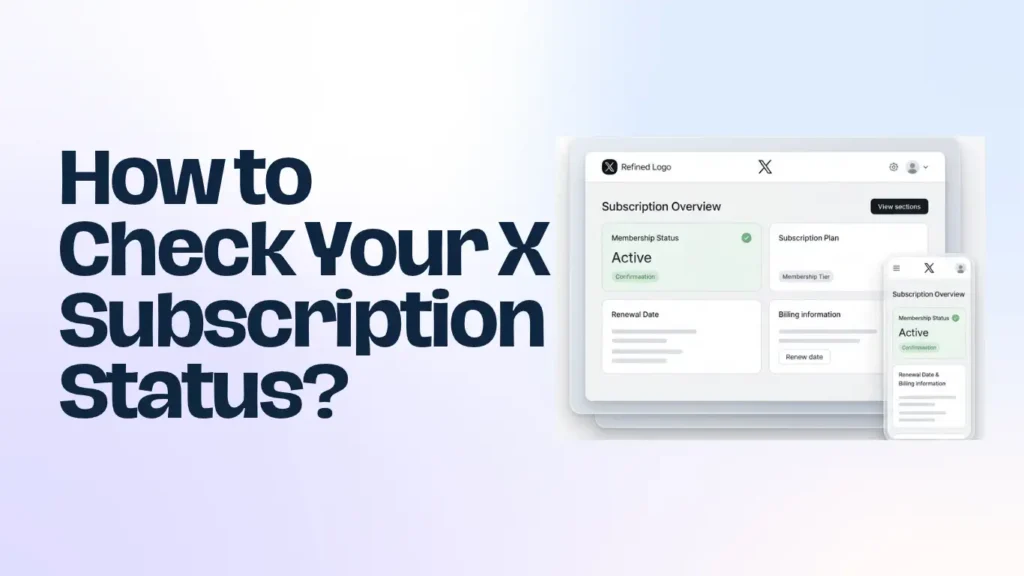
To check your X subscription status, open the Premium section of your X account and look for your current subscription tier. On the website, select Premium from the side navigation. In the mobile app, open your profile menu, select Premium, and view your membership details.
If you purchased through Apple or Google Play, check your subscription in the relevant app store as well. The billing platform can confirm whether your plan is active, cancelled, or approaching its renewal date.
The process is slightly different for users who have moved to The X Subscription, which combines X, Grok, and Cursor under one subscription.
This guide explains how to check your plan across each platform and what to do if your subscription information is missing.
Key takeaways
- Check your X subscription through the Premium section on the website or mobile app.
- If you subscribed through Apple or Google Play, verify your membership in the respective app store.
- Use the Grok billing dashboard to check your plan and invoices if you have The X Subscription.
- Confirm your subscription’s renewal or expiry date through the original payment platform.
- If your subscription is missing, check the correct X account, payment status, and billing platform before contacting support.
Table of Contents
How to Check Your X Subscription Status on the Web?
The X website provides a direct way to view your Premium membership.
Follow these steps:
- Visit X.com and sign in to your account.
- Open Premium from the left-hand navigation menu.
- Select the Premium section to view your membership information.
- Look for the card displaying your current subscription tier.
- Check for the Manage option next to the plan.
According to X’s official instructions, the card at the top of the Premium page displays your current tier, with the word Manage indicating that you are enrolled in X Premium.
If you need to review additional details, open the management options associated with your plan.
Important: Make sure you are signed in to the same X account used when purchasing the subscription. If you have multiple accounts, checking the wrong profile may make it appear that your membership is missing.
How to Check Your X Subscription Status on iPhone or Android?
You can also check your membership through the X mobile application.
The navigation labels may vary slightly depending on the app version.
- Open the X app on your iPhone or Android device.
- Tap your profile picture to open the profile menu.
- Select Premium.
- Open Preferences if that option appears.
- Look for the membership card showing your current Premium tier.
- Check whether the card displays the Manage option.
If your current plan appears in this section, your account is associated with an X Premium membership.
However, the in-app membership page and your app store billing record serve different purposes.
The X app helps you identify the benefits associated with your account, while Apple or Google Play can confirm the subscription and payment details they manage.
How to Check Your X Subscription Through Apple or Google Play?
If you purchased X Premium through an in-app purchase, check the subscription directly through the platform that processed the payment.
This is particularly useful when the X app does not show your membership correctly or when you want to confirm its renewal date.
1. On iPhone or iPad
Apple manages subscriptions purchased through its App Store payment system.
To check your X subscription:
- Open the Settings app on your iPhone or iPad.
- Tap your name at the top of the screen.
- Select Subscriptions.
- Find X in your subscription list.
- Open the listing to review its subscription details.
You can check the available plan information and whether the subscription is active or cancelled.
If X does not appear, confirm that you are signed in with the Apple Account used for the original purchase. A subscription purchased directly through X.com will not necessarily appear in Apple’s subscription list.
For additional instructions, visit Apple Support’s subscription guide.
2. On Android
Google Play provides subscription information for purchases made through its billing system.
Follow these steps:
- Open the Google Play Store on your Android device.
- Tap your profile picture.
- Select Payments & subscriptions.
- Tap Subscriptions.
- Find X in the list.
- Open it to review the plan and billing information.
Check that you are using the Google Account associated with the original purchase. If you use multiple Google accounts, switch between them to find the correct subscription.
Google Play also provides options to manage payment details and review renewal information.
You can find additional guidance in the Google Play Help Center.
How to Check Your X Subscription Status Under The X Subscription?
X Premium is now part of The X Subscription, a combined subscription that brings X, Grok, and Cursor together.
However, switching to the unified subscription is optional. Existing X Premium subscribers retain their current plan, price, and features unless they choose to switch.
If you have already moved to The X Subscription, you should check your plan through the Grok dashboard rather than relying only on the older Premium membership page.
Here’s how:
- Visit grok.com/dashboard/billing.
- Sign in using the account associated with the X Subscription.
- Open the Billing & invoices section.
- Find the Current plan card.
- Review your subscription tier and renewal information.
The dashboard also provides access to payment details and invoices.
If you are part of a team subscription, billing information may only be visible to the team administrators who manage payments.
The X Subscription documentation confirms that the plan, payment details, invoices, and prepaid credit are managed through the Grok dashboard.
What Does Your X Subscription Status Mean?
After checking your account, you may see different subscription or billing indicators. Understanding them helps you determine whether you need to take action.
| Subscription status | What it means | What to do |
|---|---|---|
| Active | Your subscription is currently in effect. | Check your plan benefits and next billing date. |
| Cancelled | Automatic renewal has been stopped. | Check the expiry date to confirm how long access remains. |
| Expired | The paid subscription period has ended. | Subscribe again if you want to restore access. |
| Payment issue | The payment may not have been completed successfully. | Review your payment method and billing platform. |
| Missing subscription | The membership is not appearing in the account or platform you checked. | Confirm the correct X account and original purchase platform. |
The exact wording can differ between X, Apple, and Google Play. Do not assume that a cancelled subscription has stopped working immediately.
For example, if you cancel an X Premium plan before its renewal date, your paid features generally remain available until the end of the period you have already paid for. Cancellation stops the next renewal rather than automatically ending the current paid period.
How to Check Your X Subscription Renewal Date?
Checking your renewal date helps you understand when your next payment is expected and whether your subscription is approaching its end.
The location depends on where you purchased your plan:
- X.com: Open Premium and review the available management and billing information.
- Apple: Go to Settings, tap your name, and open Subscriptions. Select X to review the subscription details.
- Google Play: Open Payments & subscriptions, select Subscriptions, and choose X.
- The X Subscription: Visit the Billing & Invoices page in the Grok dashboard and check your current plan.
X Premium subscriptions can be billed monthly or annually, depending on the plan selected. The renewal date and billing information should be checked through the platform that manages the purchase.
If you recently changed your subscription tier, remember that the billing date may also change depending on the platform and type of plan change.
Why Is Your X Subscription Not Showing?
If you cannot find your subscription, it does not automatically mean that your membership has expired. Several account and billing issues can cause this problem.
1. You Are Logged Into the Wrong X Account
This is one of the first things to check if your membership is missing.
If you have multiple X accounts, sign out and log in to the account associated with your original subscription purchase. Your Premium benefits are linked to the relevant X account, not automatically shared across all profiles you own.
2. You Are Checking the Wrong Payment Platform
Subscriptions purchased through different platforms are managed separately.
For example:
- A web purchase is managed through X and its payment provider.
- An iPhone or iPad purchase is managed through Apple.
- An Android purchase is managed through Google Play.
If you purchased through Apple, you may not find the billing record in Google Play or the X website’s payment settings.
3. Your Subscription Has Been Cancelled or Expired
A cancelled subscription may still provide access until the end of its paid billing period. Once that period ends, the associated benefits expire.
Check the subscription details on the original purchase platform to determine whether it is still active or has reached its expiry date.
4. You Have Switched to The X Subscription
If you have moved from X Premium to The X Subscription, your billing and plan management may have changed.
Check the Current plan card in the Grok dashboard. The unified subscription provides X benefits through the personal X account connected to the plan.
5. Your Payment Was Not Completed
A failed renewal or payment issue can interrupt access to subscription benefits.
Check your billing history, payment method, and any notifications from X, Apple, or Google Play.
If the payment was processed but your account does not reflect the membership, contact the relevant payment provider or X Support.
What to Do If Your X Subscription Status Is Incorrect?
If your subscription appears active on the payment platform but the X account does not show the expected membership, try the following steps:
- Verify your X account: Confirm that you are using the profile associated with the purchase.
- Check your billing platform: Review the subscription directly through X, Apple, or Google Play.
- Refresh your session: Sign out of X and sign back in.
- Update the app: Install the latest available version of X.
- Review your payment history: Look for a successful payment, renewal, cancellation, or refund.
- Contact support: If the billing record confirms an active subscription but the benefits are missing, contact X Support with the relevant transaction details.
Avoid purchasing another subscription immediately if you have already been charged.
First, confirm whether the original payment was successful and whether the membership is attached to a different X account.
You can also read our guide on how to fix X Subscription benefits not showing if your membership is active, but some features are unavailable.
Final Thoughts
The easiest way to check your X subscription status is to open the Premium section of your X account and review the current membership card.
If you purchased through Apple or Google Play, verify the subscription through the corresponding app store.
If you have switched to the X Subscription, use the Grok dashboard to review your current plan, renewal information, and invoices.
Checking the original purchase platform and the correct X account is the most reliable way to identify whether your subscription is active, cancelled, or expired
Frequently Asked Questions (FAQs)
1. How do I know if my X Premium subscription is active?
Open the Premium section of your X account and look for the membership card displaying your current tier and the Manage option. You can also verify the billing status through Apple or Google Play if you purchased through an app store.
2. Can I check my X subscription without opening the X app?
Yes. You can check a web purchase through X.com. If you subscribed through Apple or Google Play, you can review the membership in your respective account’s subscription settings.
3. Why does X show that I have no subscription when I paid?
You may be logged into a different X account, checking the wrong billing platform, or experiencing a delay in membership recognition. Verify the original purchase receipt and confirm which X account received the subscription.
4. Does cancelling X Premium immediately remove my benefits?
No. Cancelling generally stops automatic renewal, while your paid benefits remain available until the end of the current billing period. X may remove access earlier in certain circumstances, such as account suspension.
5. Is The X Subscription the same as X Premium?
Not exactly. X Premium is now included as part of The X Subscription, which combines X, Grok, and Cursor. Existing Premium subscribers keep their current plan, price, and features unless they choose to switch.
6. Where can I check my X Subscription invoices?
If you use the unified X Subscription, open grok.com/dashboard/billing and select the Invoices section. For older X Premium purchases, check the billing platform through which you originally subscribed.
Also Read –
Why Is My X Subscription Not Working? Common Problems and How to Fix Them (Updated)
X Subscription Benefits Not Showing? How to Fix It? (Updated)